
To ensure Toast can process delivery fees and tips on orders received from TapMango you must create matching Service Charges in Toast Tab. If a matching service charge is not added to Toast the POS Integration cannot process sales with delivery fees or tips and these orders will fail.
| Contents |
|---|
Self Delivery
If you are planning to use self-delivery (i.e. you employ delivery drivers), the delivery fees will need to be set up in ToastTab to match the setup in the TapMango Portal.
- Log into ToastTab, go to Payments > Checks & receipt setup > Service Charges
- Add a new Service Charge. It can be named anything, but it must be a “Fixed” type.
- The fee ranges you create must match what you've created in TapMango's Portal (Portal > Orders > Catalog > click your location group > Locations tab)
DoorDash Delivery
If you want to integrate your DoorDash delivery with TapMango, you will need to follow a slightly different process in Toast to set up the Service Fees and Doordash Tip fee.
- For the delivery fee, log into ToastTab, go to Payments > Checks & receipt setup > Service Charges.
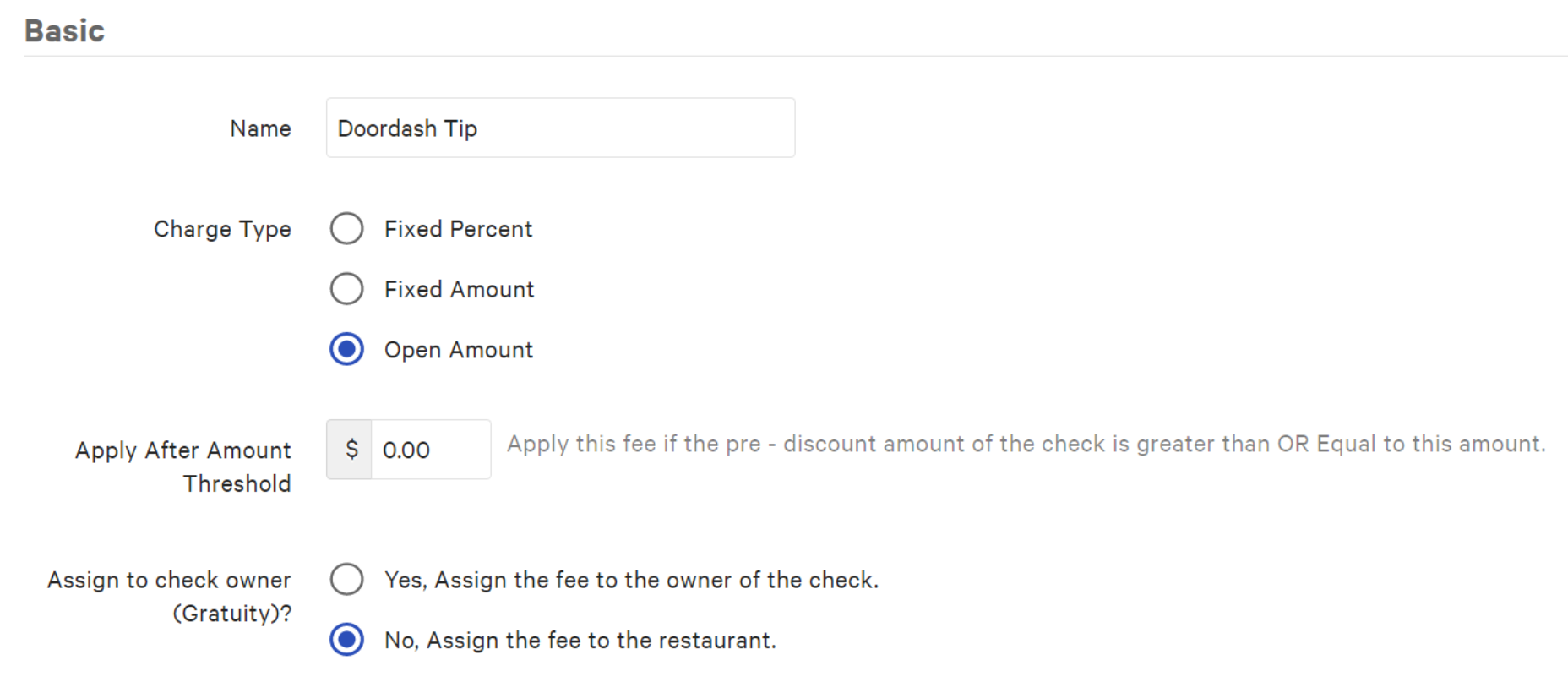
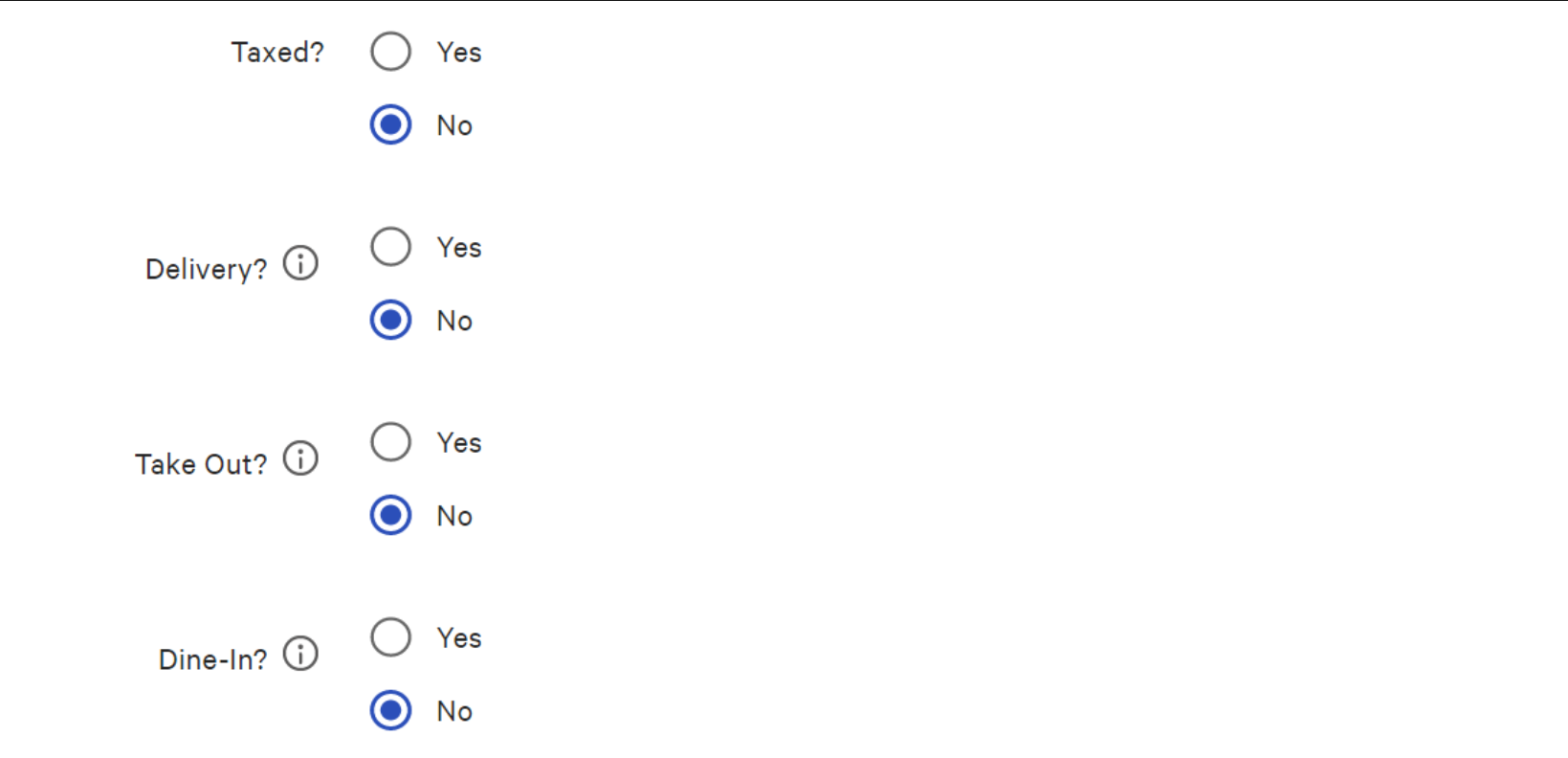
- Add a new Service Charge. It must be named "Doordash" (no extra/missing spaces and matching capitalizations), but it must be an Open Amount, & NOT set up as delivery.
- Assign it to the restaurant, exactly as in the screenshots below:
Setting up DoorDash tips
You will need to set up another Service Charge for the driver's tip - this must be an Open type named “Doordash Tip” (no extra/missing spaces and matching capitalizations) with the same settings as below:
UberDirect Delivery
Toast merchants who use Uber instead of DoorDash will need to add two fee types using the same steps laid out above for Doordash.
- Log into ToastTab, go to Payments > Checks & receipt setup > Service Charges
- Add a new Service Charge. It must be named UberDirect, it must be an Open Amount, & NOT set up as delivery. Once done, save.
Setting up UberDirect tips
You will need to set up another Service Charge for the driver's tip - this must be an Open type named “UberDirect Tip” (no extra/missing spaces and matching capitalizations) with the same settings as below:
Questions?
If you have any questions about TapMango Memberships that aren't covered in this guide please don't hesitate to reach out to your account manager or a member of the support team by:
- Phone 1-855-208-0020
- Email support@tapmango.com
- Start a chat
Comments
0 comments
Article is closed for comments.