TapMango's online ordering platform supports in-house delivery or it can integrate with Uber and DoorDash's white-label delivery services, Uber Direct and DoorDash Drive.
Turning On Delivery
To use delivery you'll need first to turn on the delivery feature.
Check out our guide about turning on delivery and managing your delivery fees for more information.
How Does Delivery Work?
TapMango provides the delivery experience - but doesn't provide the actual delivery service. You'll still need to have your own drivers, or work with a 3rd party company that handles pickup and delivery from your store.
What your Customers do
1Step 1Choose the location the order will be placed at. If you have only one location, this step is skipped.
2Step 2On the Order Ahead screen, choose a time: today / ASAP, or a future time.
3Step 3Choose an order method: Pickup or Delivery.
4Step 4When Delivery is selected, the customer enters a delivery address or picks one they have used before.
5Step 5If the address is inside a delivery zone, the customer sees the fee. If it is not, they are told delivery is not available to that location.
6Step 6The customer completes the order as normal.
7Step 7After the order is placed, the status shows delivery progress, including Ready For Delivery and Out For Delivery.
What you and your staff do
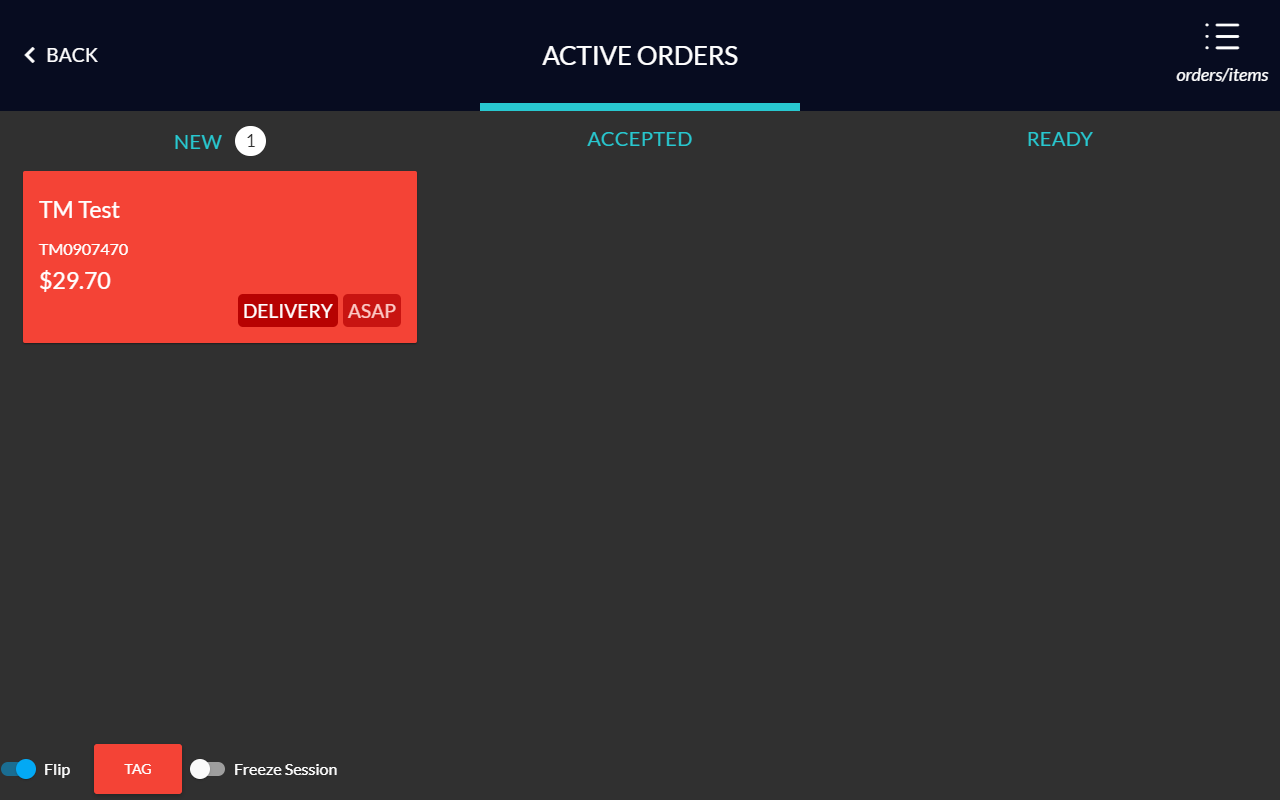
1Step 1You'll receive an order notification as normal on your tablet's cashier side. The notification type is DELIVERY.
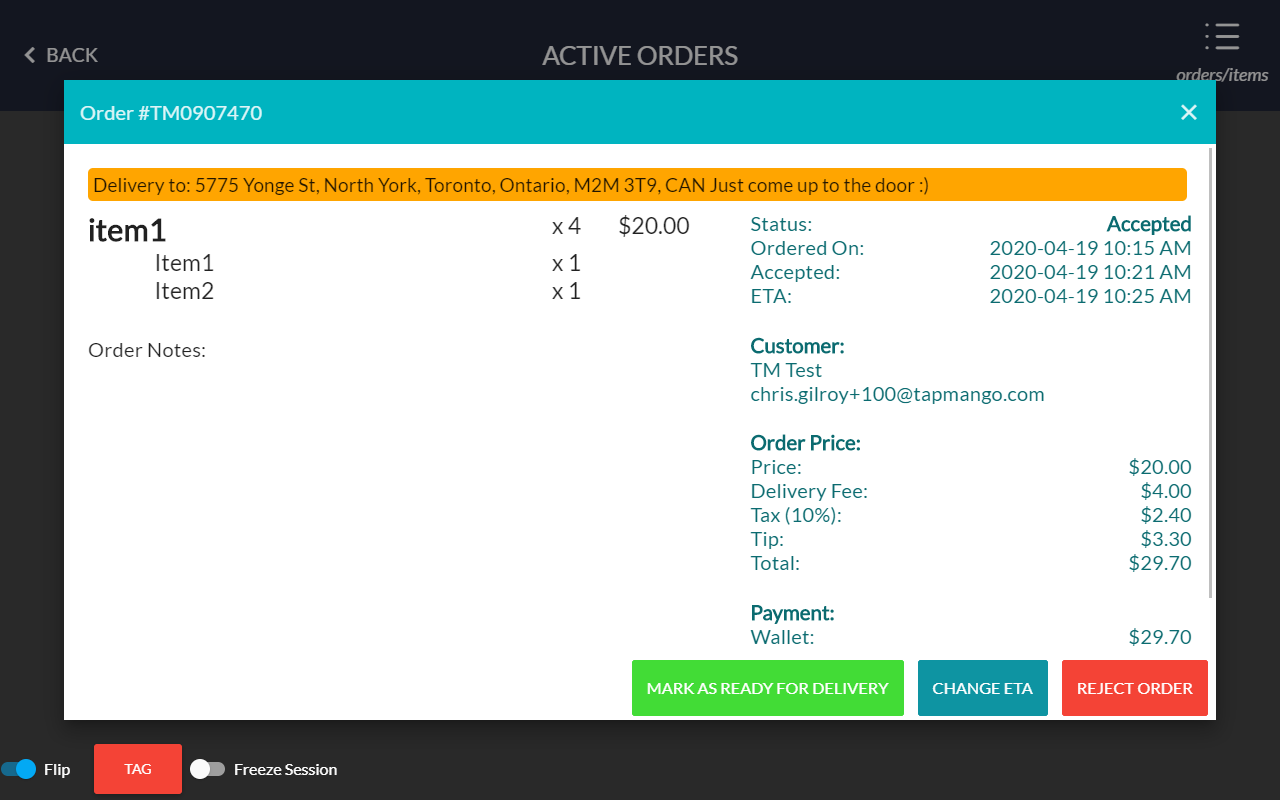
2Step 2When this order is selected, the delivery info and address are shown, and the order can be accepted as normal.
3Step 3Complete the order. When it is finished, set the status to Ready for Delivery. The customer's order shows Ready For Delivery.
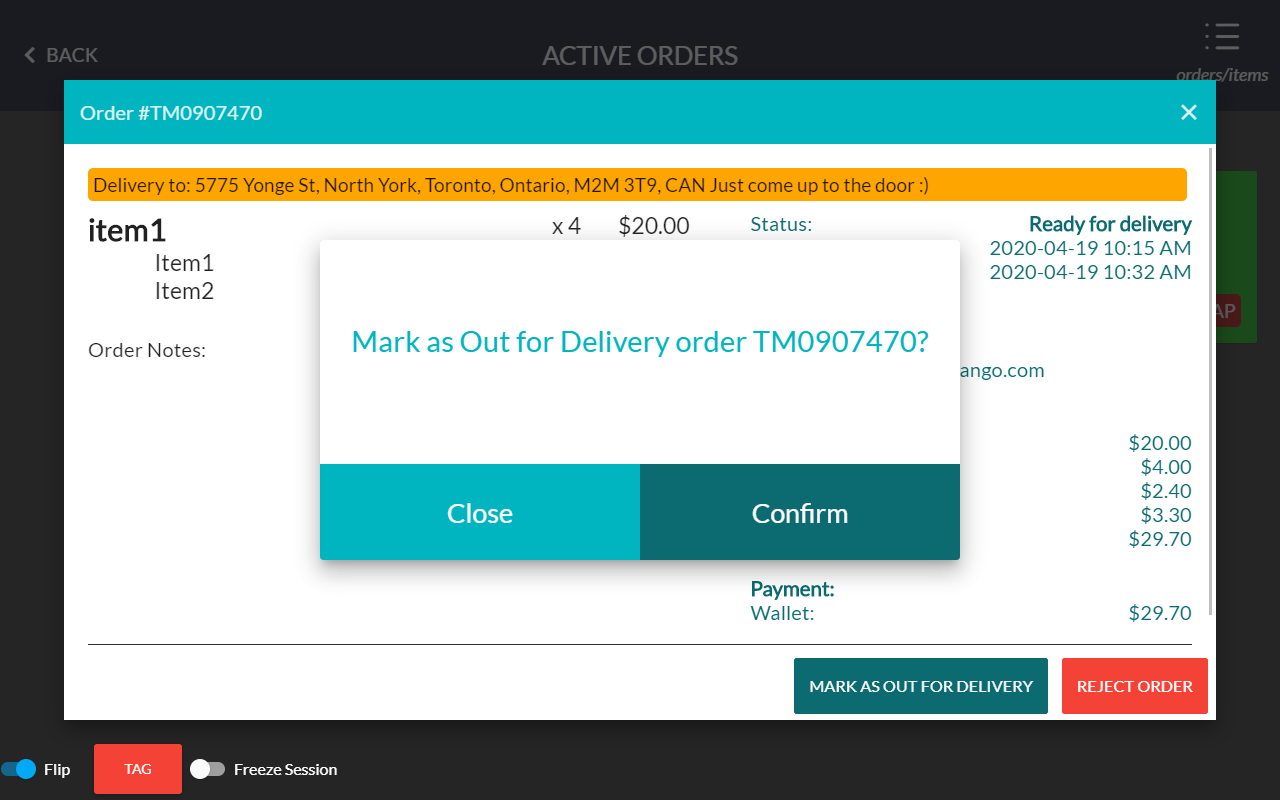
4Step 4When staff leave with the order, or the driver arrives to pick it up, set the status to En Route. The customer's order shows Out For Delivery.
A New Delivery Order Arrived
Delivery Order Details
Order That's been marked en-route
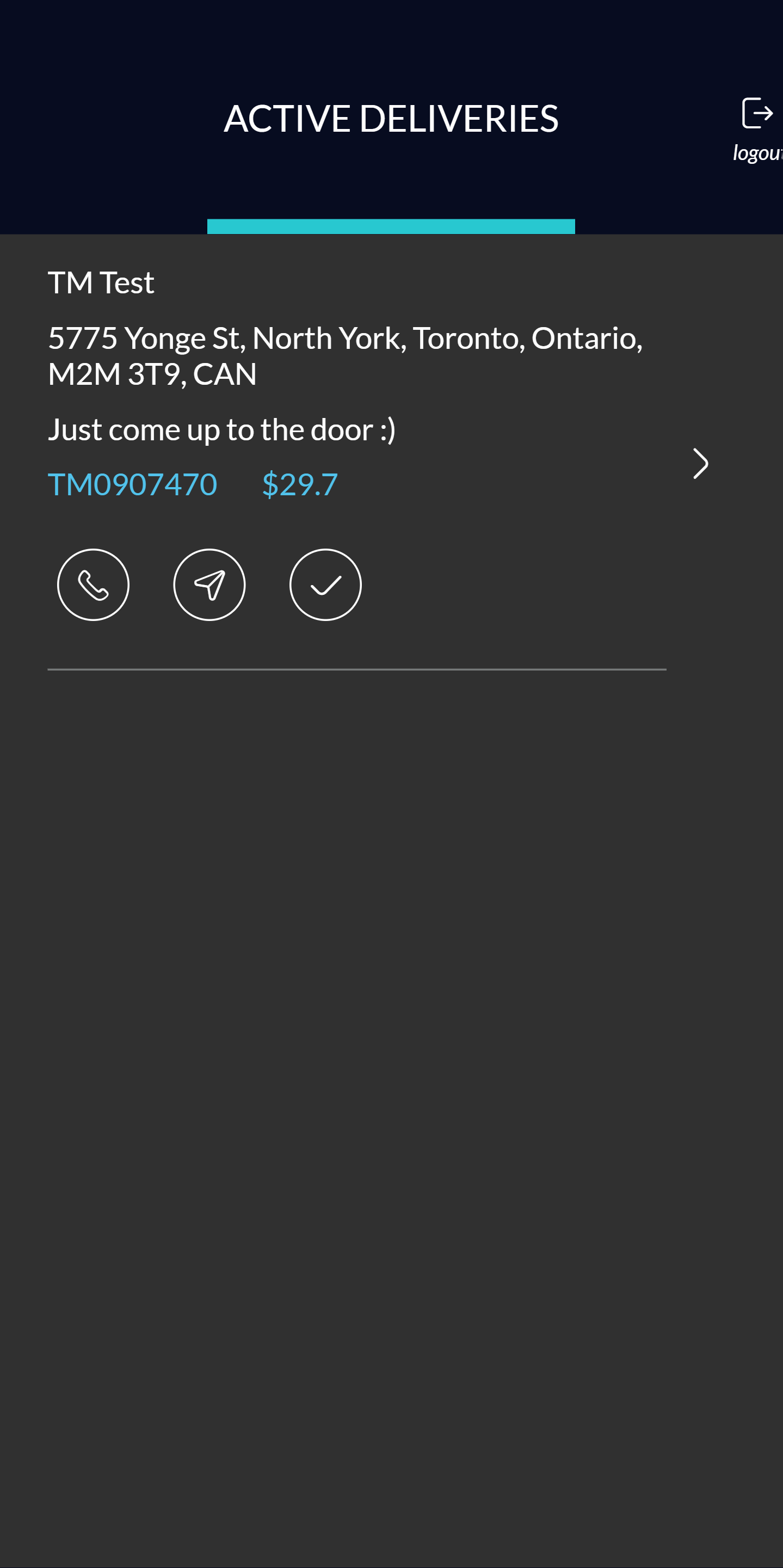
What Your Driver/Staff Do
Check out our driver accounts guide for information on setting up drivers
1Step 1Once the order is picked up, the driver delivers it.
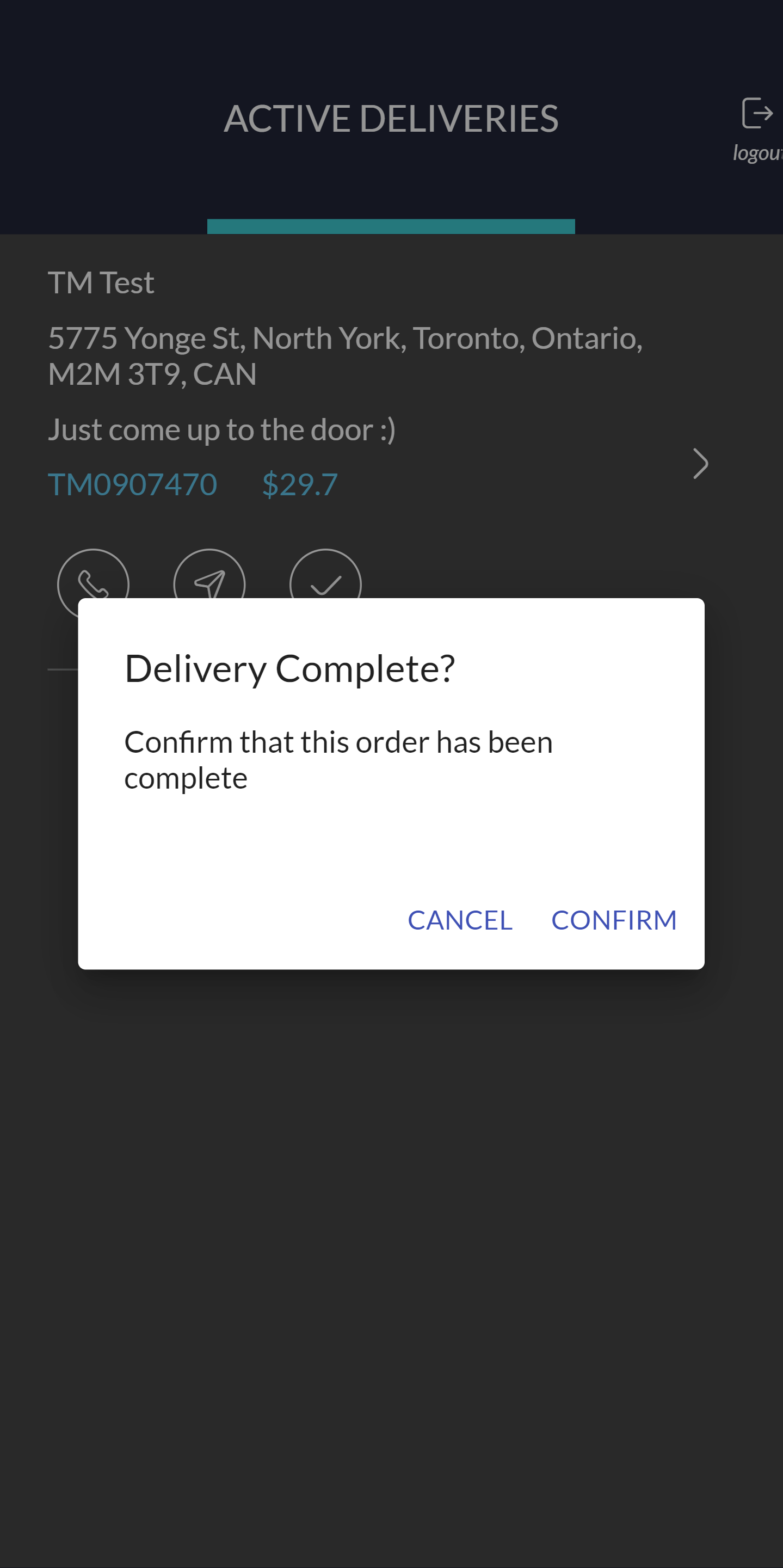
2Step 2The driver uses app.tapmango.com. That login shows only orders they were assigned or picked up.
3Step 3The navigation icon opens the route in the driver's map app.
4Step 4The driver can also see any instructions the customer provided.
5Step 5After the drop-off, the driver marks the order complete with the checkmark.
Questions?
If you have extra questions don't be shy and talk to us and we'll be happy to help!
Contact usIf you have any questions, talk to us and we'll be happy to help.

Comments
0 comments
Article is closed for comments.