Manually Assigning Vouchers
You may want to manually assign a voucher to a customer. Typically this is done as a compensation for a mistake staff may have made in store or to appease an irate customer or just random customer appreciation. However the reason why you would want to assign a voucher manually is completely up to you
Make sure the voucher is able to be assigned manually
Vouchers must be designated as manually issuable and this setting is off by default. If you're unsure the voucher you have in mind can be issued manually go and edit the voucher.
1Step 1From portal.tapmango.com select ' vouchers ' on the right hand side (desktop) or from the drop menu (mobile)
2Step 2Select ' edit ' for the voucher you want'
3Step 3Under the ' restrictions ' tab select ' can be issued manually '
4Step 4Submit
If you need to create a voucher or would like a more detailed explanation see our How do I Create a Voucher? guide
Make sure the user that will be issuing the voucher is not restricted to assign vouchers manually
If you are having your staff assign vouchers on your behalf these accounts may have restrictions placed on them from being able to do so. You'll want to ensure that the user is able to do so.
1Step 1From portal.tapmango.com select 'settings' then ' users ' on the right hand side (desktop) or from the drop menu (mobile)
2Step 2Find the user you want to review and select ' edit '
3Step 3Scroll down to the ' Access Restrictions ' section and ensure Disable Voucher Assignment (Portal & Tablet) is unchecked
If you want to create a new user or would like a more detailed explanation see our How do I edit or add additional Users? guide as well as our User Roles and Restrictions Explained guide.
Assigning the voucher manually
Vouchers can be assigned manually via the tapmango portal or tablet.
A campaign sets an expiration date when it assigns a voucher. A voucher you assign manually does not get one. It expires only if the voucher itself has an expiration date from when you created or edited it.
Via the TapMango Tablet
1Step 1Have a customer be checked into the TapMango tablet
2Step 2Bring the tablet to the cashier/admin side by flipping the tablet on the stand (note: you may also have a dedicated admin tablet and not need to flip)
3Step 3If a customer was not checked in you may also search for one now
4Step 4Once a customer has been brought up select 'rewards'
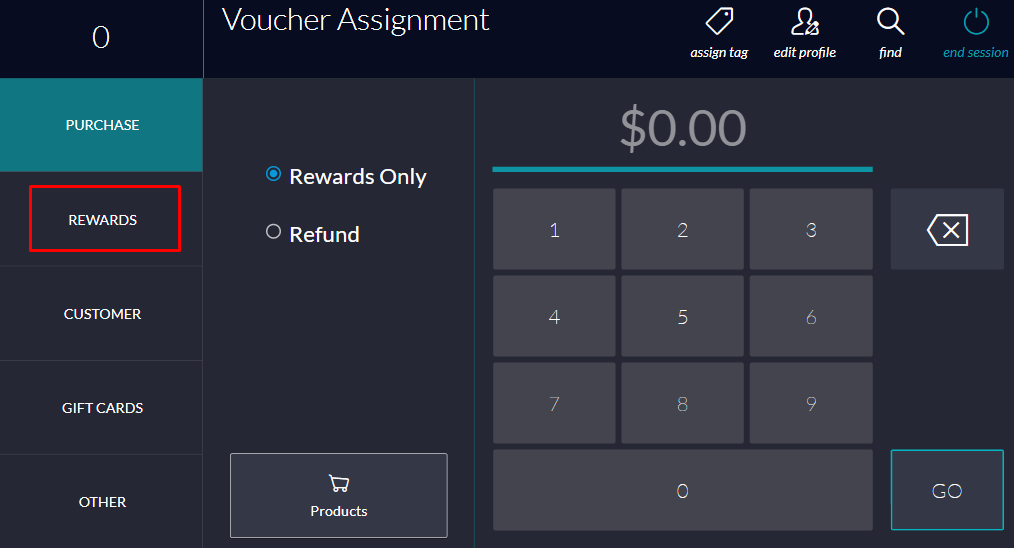
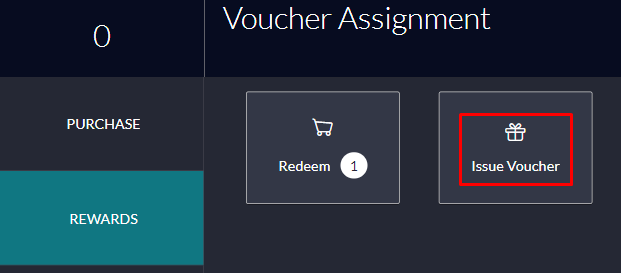
5Step 5Select 'issue voucher'
6Step 6Select the voucher you wanted to assigned from the list and confirm
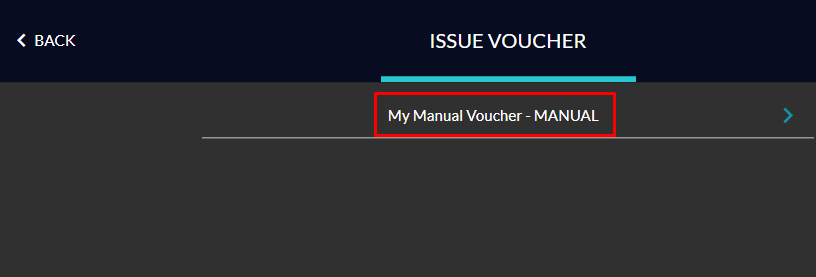
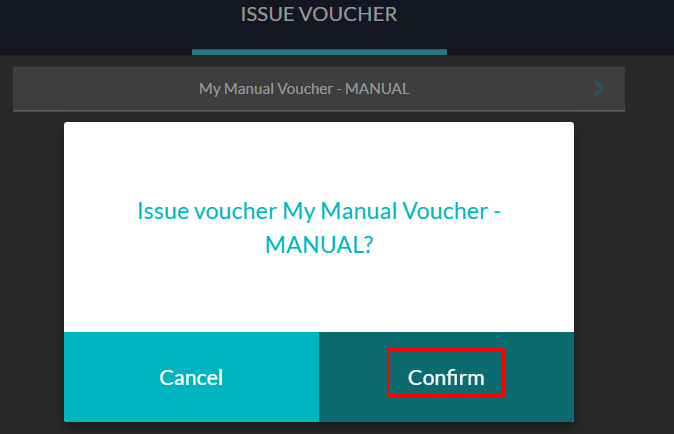
7Step 7Now the customer has the voucher on their account
Via the TapMango Portal
1Step 1Navigate to portal.tapmango.com and select 'customers' then 'customer list'
2Step 2Search for the customer you wish, then select the customer's name from the list
3Step 3Select 'assign voucher'
4Step 4Select the quantity to assign (default is one) and select the 'assign' button and confirm
5Step 5The customer should now be assigned the voucher
Contact usIf you have any questions, talk to us and we'll be happy to help.

Comments
0 comments
Article is closed for comments.