
If you are curious to see what messages (either Text messages or Emails) are being sent out to your customers, it's as easy as running a quick report in Portal.
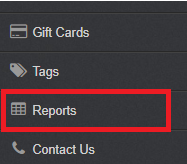
Step 1: Go into Reports on Portal
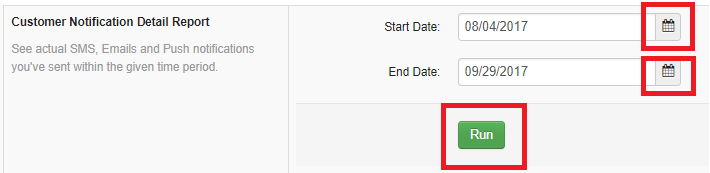
Step 2: Scroll down to 'Customer Notification Detail Report', choose your dates and press 'Run'.
Step 3 (Optional): Export data to Excel file by clicking 'Export to CSV'

'DeliveryMethod' will show as Email, SMS (Text) or Push. 'Subject' displays the subject of the Email or the beginning message being sent out (for Push/Text).
If your customer did not receive the message due to an invalid phone number or email, you will see a 'BOUNCED' in the 'Status' column - note that your customer will be asked to update their info upon their next check-in.
Lastly, if you're trying to figure out why a message was sent out the 'Trigger' column shows which Trigger made that message get sent out.
Comments
0 comments
Article is closed for comments.